iPhone
One focused view. All your panes a tap away.
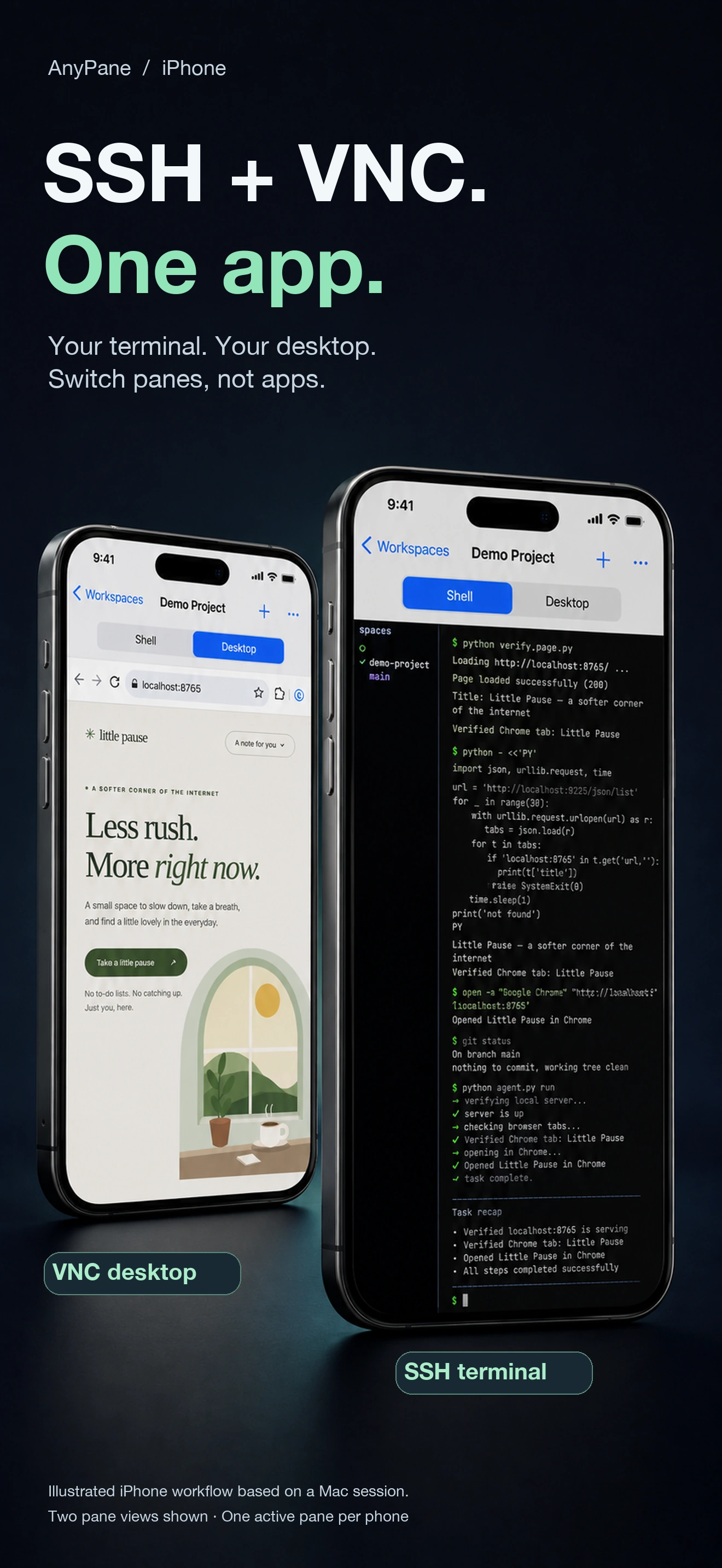
Choose a workspace, then use the tabs to move between SSH and VNC. iPhone shows one active pane at a time, never a split view.
 AnyPane
SSH + VNC · iPhone / iPad / Mac
Bring SSH terminals and VNC desktops together on iPhone, iPad and Mac. Give each task its own workspace.
View on App StoreFor iPhone, iPad and Mac.
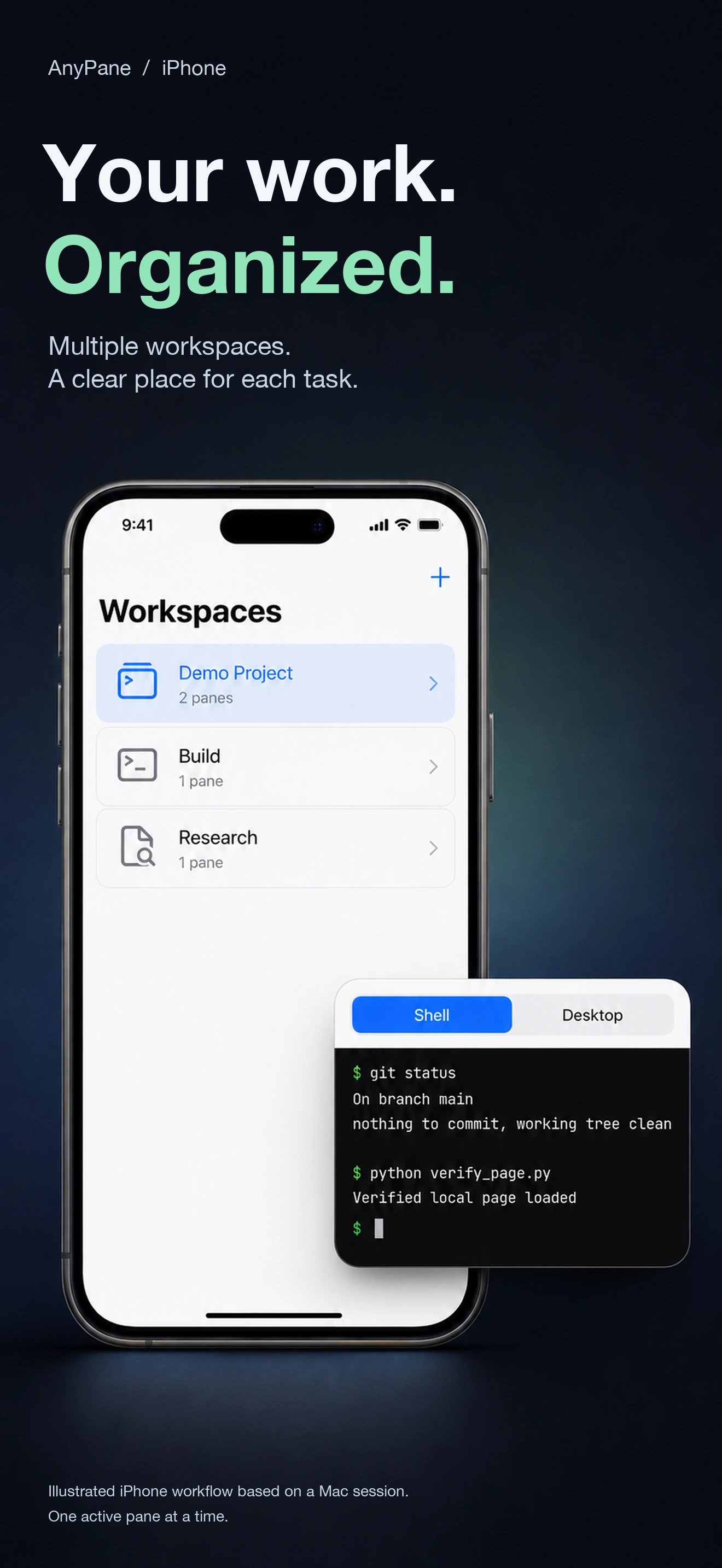
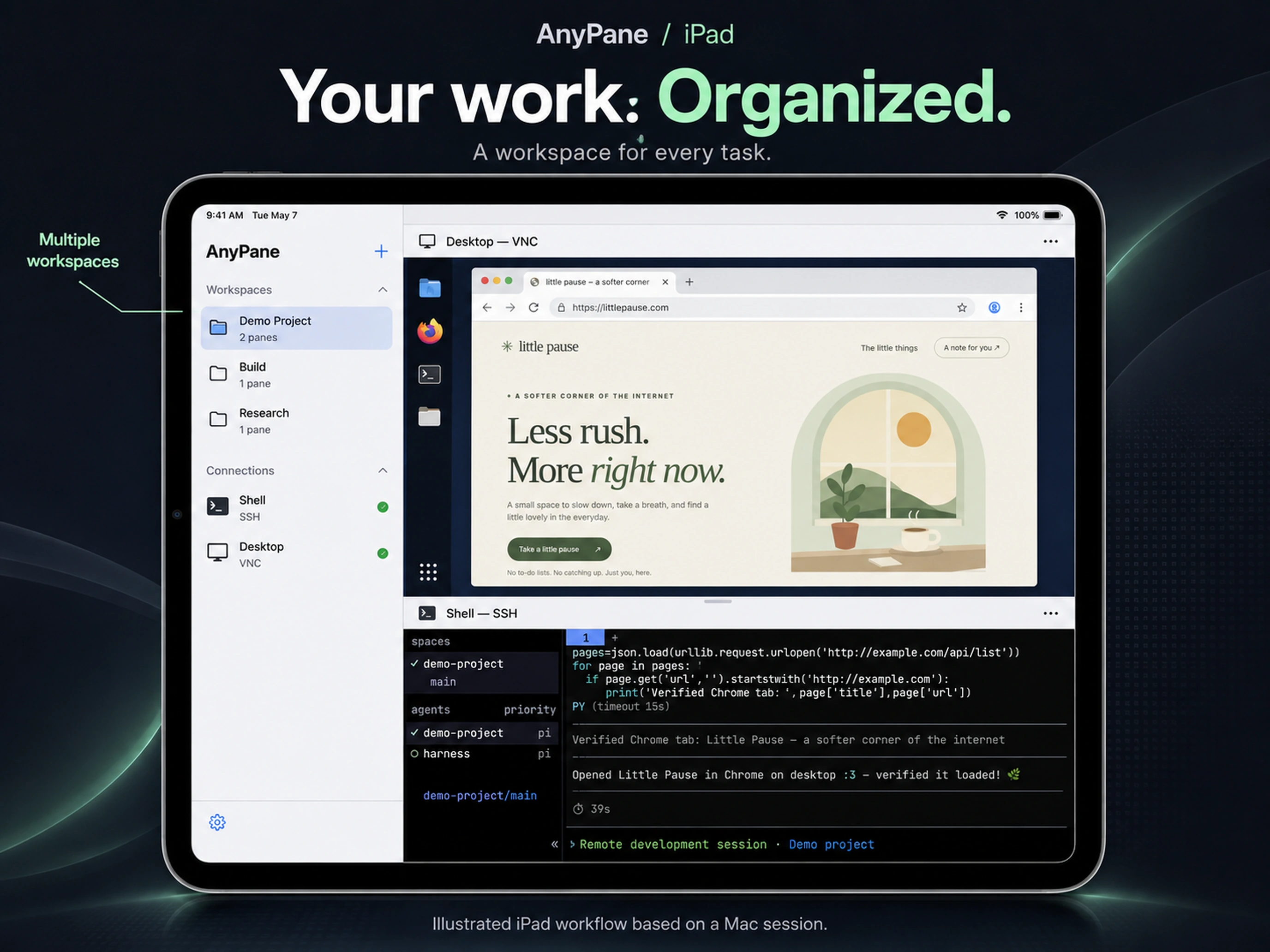
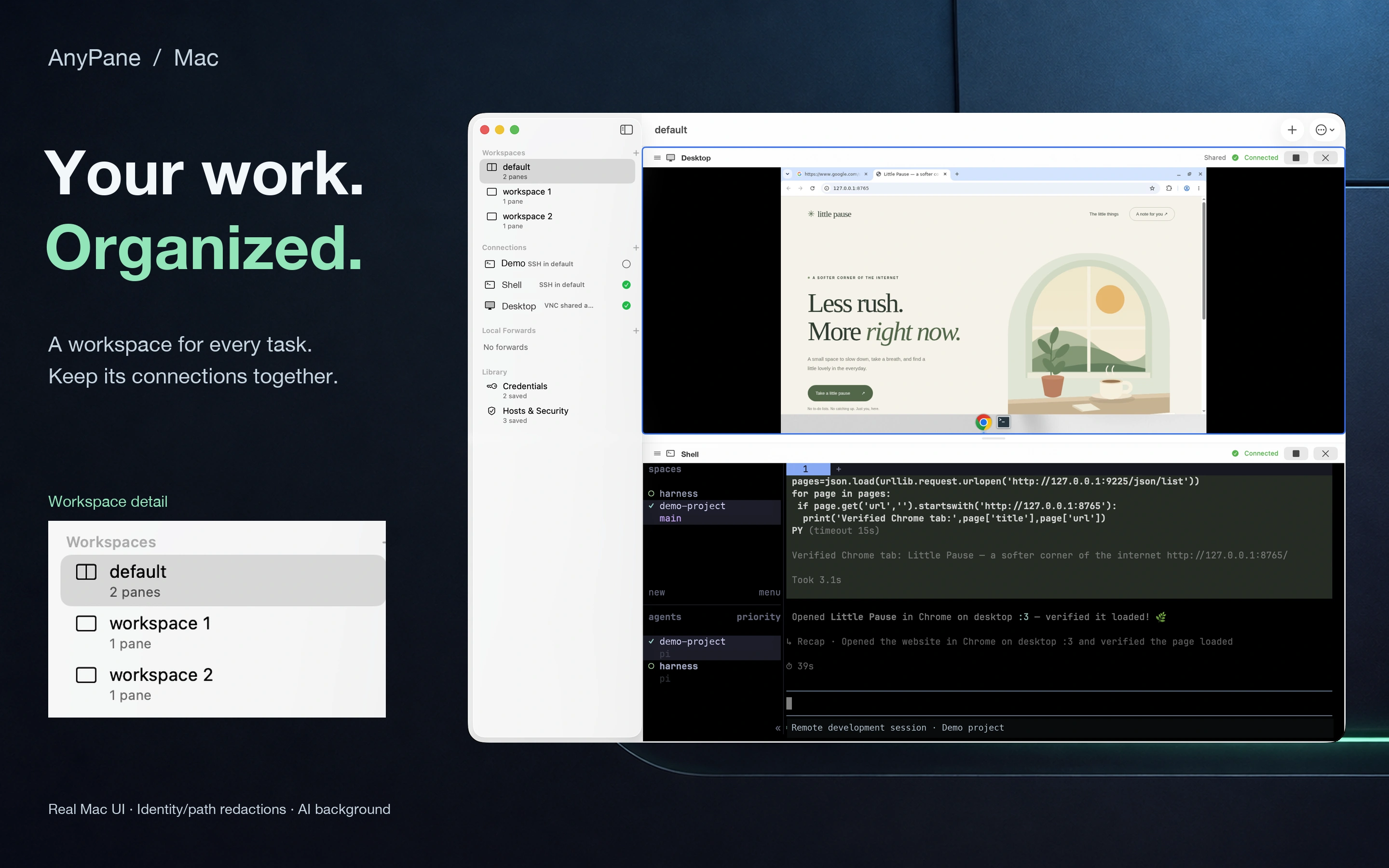
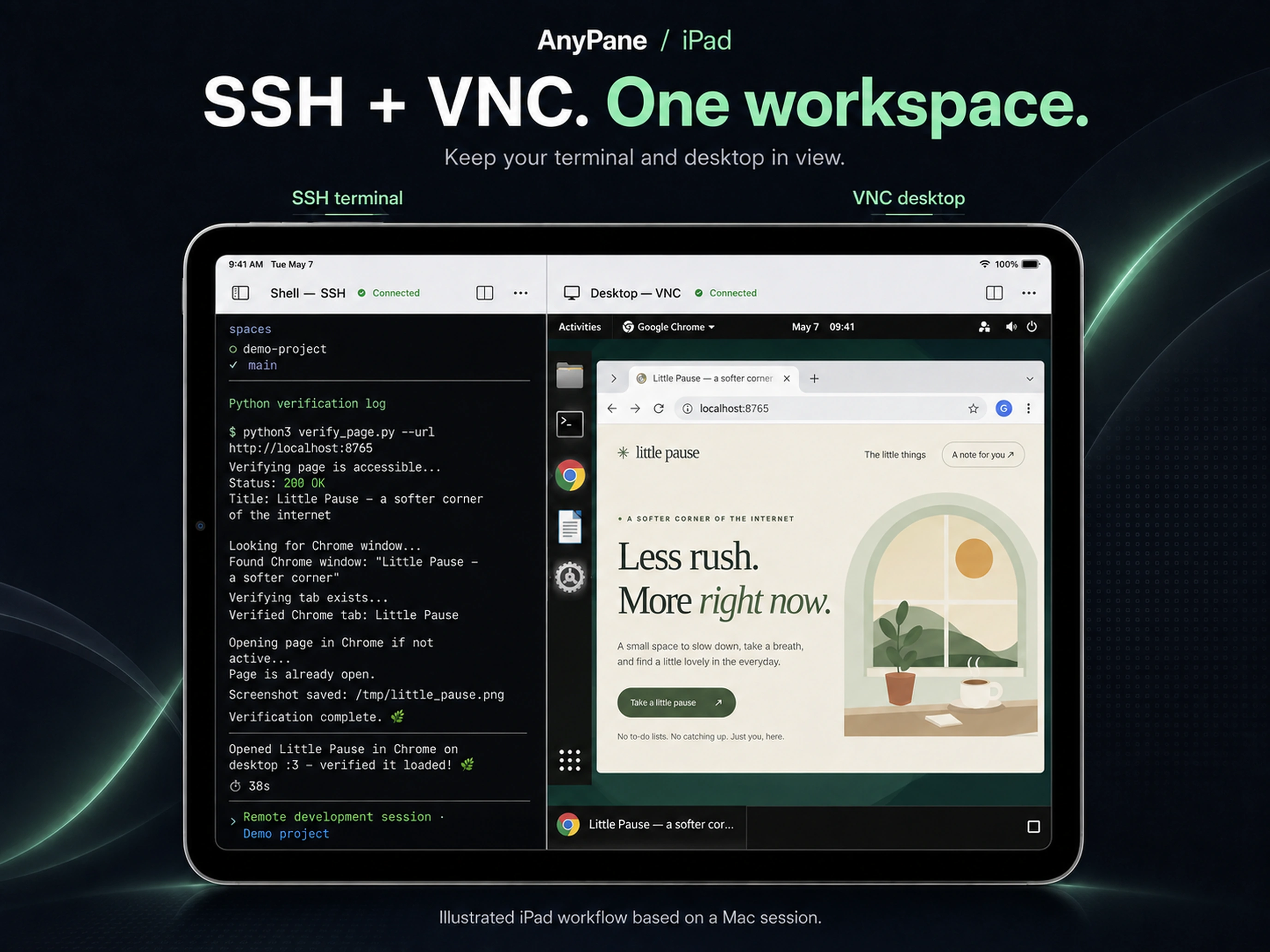
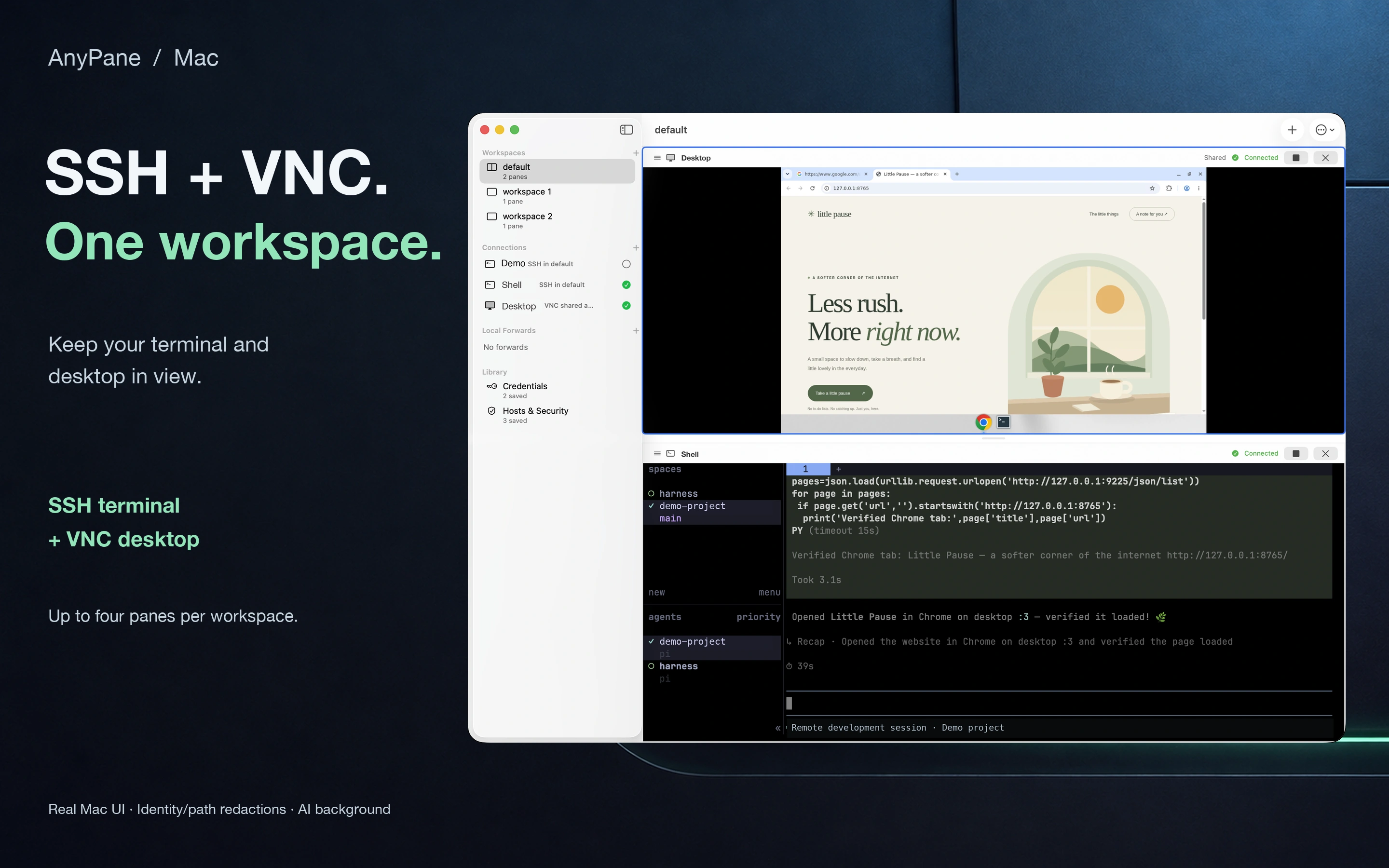
Mac: redacted real capture. iPhone/iPad: authorized AI adaptations, not device captures. View full artwork by selecting a preview.
Made for your device
Up to four SSH and VNC panes per workspace. Combine and rearrange panes on iPad and Mac; switch between them with tabs on iPhone. Choose the view that fits your device.
iPhone
Choose a workspace, then use the tabs to move between SSH and VNC. iPhone shows one active pane at a time, never a split view.
iPad
Keep your terminal and desktop visible together. Adjust splits and rearrange up to four panes to suit the work in front of you.
Mac
Give each task its own workspace. Combine SSH terminals and VNC desktops, adjust the splits, and rearrange the layout around your work.
Less switching. More doing.
Run commands, check logs and troubleshoot over SSH. Connect directly or reach your server through an SSH jump host.
Use a remote desktop when the task needs more than a command line. Connect with VNC over SSH to protect the connection; direct VNC is not encrypted.
Create multiple workspaces with up to four SSH/VNC panes each. Saved connections can be reused across workspaces; each workspace keeps its own SSH and VNC sessions.
Open a server’s development tools or admin pages from your own device through an SSH tunnel. Local access stays on your device, rather than being exposed to your network.
Your connections, under your control
Your connection settings stay on your device, and your passwords and private keys are stored in the system Keychain. Verify a new SSH server before connecting. If its trusted identity changes, AnyPane blocks the connection by default.
Read the privacy overview →You’ll need iOS/iPadOS 17 or macOS 15, plus an SSH server or VNC desktop you can reach over your network.
Check supported sign-in methods and connection requirements before getting started. On iPhone and iPad, connections may be interrupted in the background; reconnect manually when needed.
Read the connection guides →Use Cases
Explore practical examples of remote work, with setup notes and connection requirements for each scenario.
Browse Use Cases →Limited-time offer
One-time purchase from December 1, 2026: US$14.99 (U.S.) / CNY 98 (China mainland)
Currently free in the U.S. and China mainland. Bring your SSH terminals and VNC desktops together on iPhone, iPad and Mac.
For iPhone, iPad and Mac.
View on App StoreThese are scheduled prices, not previous selling prices. Actual pricing and availability follow your local App Store.
Plan your workspace
See how to connect your servers, open a remote desktop and bring the tools for your next task together.
View connection requirements